Example Page
Version: February 26, 2026. Example Page V1
Getting Started
Welcome to the example documentation page. This template shows how you might structure
your own markdown for the static site. Use index.md as a starting point and just add
new files in the root – Jekyll will pick them up automatically.
Why Markdown?
Markdown keeps your docs readable in raw form and converts nicely to HTML. Below are some of the common constructs.
Examples
Headings
Use # symbols at the start of a line:
Level‑4 Heading
You can nest sections as deeply as you like.
Lists
Ordered or unordered lists work as usual:
- First item
- Second item
- Nested bullet
- Another nested bullet
- Third item
- Step one
- Step two
- Step three
Tables
Tables make it easy to show structured data:
| Syntax | Description | Example |
|---|---|---|
| a | b | |
two columns | | x | y | |
|--|--| |
header separator | required |
:--: |
centered cell | use colons |
Code Blocks
Inline code: use `git status` to check your repo
# a fenced code block
git clone https://github.com/you/your‑repo.git
A Copy button appears in the top-right corner of every fenced code block on hover. Click it to copy the contents to your clipboard.
LaTeX / Math
You can insert formulas using dollar signs.
Inline: $E = mc^2$ shows energy–mass equivalence.
Displayed equation:
\[\int_{-\infty}^{\infty} e^{-x^2}\,dx = \sqrt{\pi}\]If you need more math, just wrap it with $$ or [ ] like above.
Images
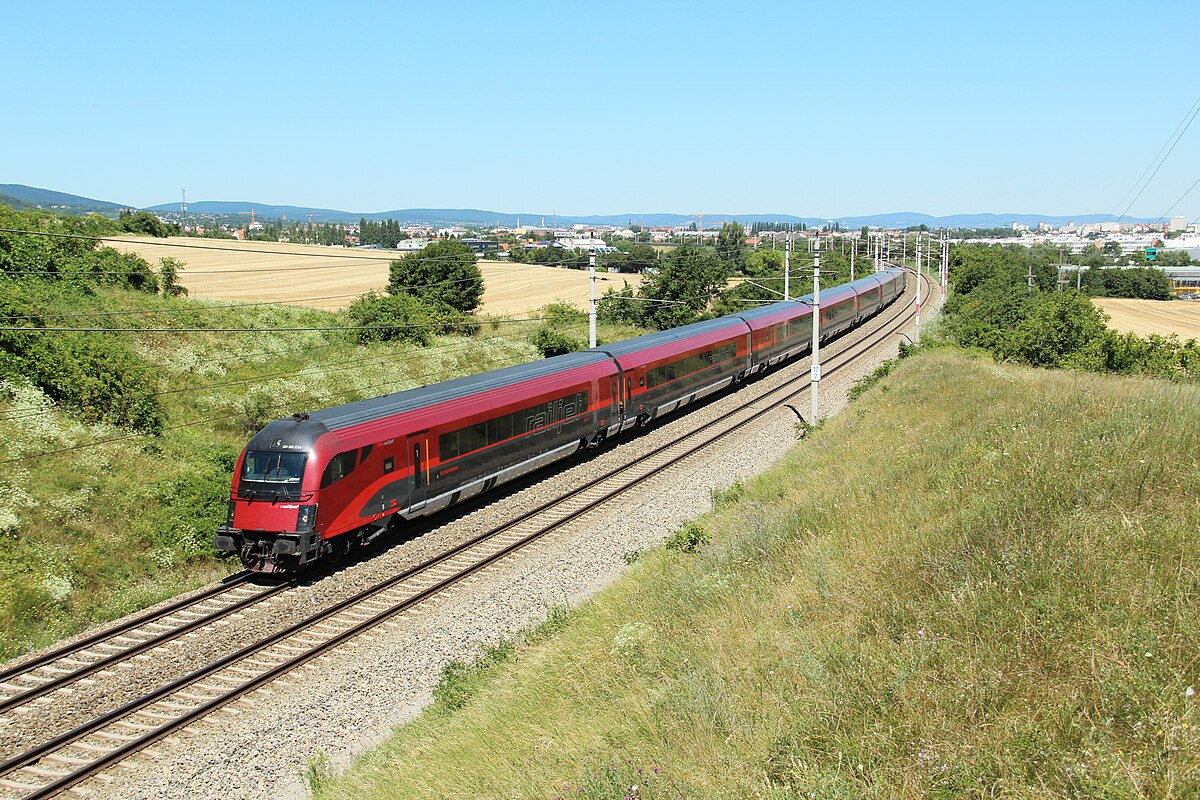
To embed an image placed in assets/images:
Built-in Features
Search
The search bar in the top navigation is active on desktop. Type any word or phrase to highlight all matches on the page in yellow. The brightest highlight is the current match; press Enter to jump to the next one, Shift+Enter for the previous, and Escape to clear.
Anchor Links
Hover over any heading — a # symbol appears to the right. Click it to copy a deep
link to that section. These links are generated automatically; no extra markup needed.
Reading Progress Bar
A thin accent-coloured bar runs along the very top of the viewport and fills as you scroll. It resets when you navigate to a new page.
To disable it: open _layouts/default.html and remove
the two highlighted areas:
- The
<div id="reading-progress" …>element near the top of<body> - The JS block between the comments
// ── Reading progress bar…// ── End reading progress bar
Multi-page Navigation
Pages are listed in _data/nav.yml. The sidebar shows the full
list above the table of contents, and the current page is highlighted automatically.
- title: Guide
  pages:
    - title: Introduction
      url: /
    - title: Reference
      url: /reference/
To add a new page:
- Create
my-page.mdin the project root withlayout: defaultfront matter. - Add an entry to
_data/nav.yml— theurlmust match the file’s permalink (withpermalink: pretty,my-page.mdbecomes/my-page/).
Previous / Next
When a page has neighbours in _data/nav.yml, ← Previous and Next → links
appear at the bottom of the content card automatically. No extra markup required.
Callout Blocks
Callouts draw attention to important information. Add one with a raw HTML <div> and
the markdown="1" attribute so Jekyll processes the inner text as Markdown.
Syntax:
<div class="callout callout-note" markdown="1">
**Note:** Your text here. Supports _markdown_, `code`, and [links](/).
</div>
Four variants are available:
Note: Use this for general information or supplementary context.
Tip: Use this for best practices, shortcuts, or recommended approaches.
Warning: Use this to highlight things that could cause unexpected behaviour.
Danger: Use this for destructive or irreversible actions. Proceed with care.
| Class | When to use |
|---|---|
callout-note |
General info, tips |
callout-tip |
Recommended practices |
callout-warning |
Non-critical cautions |
callout-danger |
Destructive actions, breaking changes |
End of document.